


Something keeps me up at night, and it’s not what you’d expect…. It’s not some sophisticated hacker in a dark room. It’s the front desk employee with full administrator access to her computer, cheerfully clicking “Yes” on every pop-up that appears.
Here’s the thing. Administrator access almost always starts innocently. Someone needs to install a printer. Update a program. Change a setting. IT is busy, so somebody grants admin rights to get it done quickly. The task takes ten minutes. The access stays for three years. That ten-minute shortcut is exactly why every firm needs a plan to remove employee admin access methodically.
And from that day on, that employee can install anything, approve anything, and change anything on that computer. Including the things malware asks them to approve.
Let me give you a number that should change how you think about this. According to BeyondTrust’s 2025 Microsoft Vulnerabilities Report, removing local admin rights and controlling execution has historically mitigated 75% of Microsoft’s critical vulnerabilities. Read that again. Three quarters of the worst vulnerabilities in Microsoft’s ecosystem become dramatically less dangerous the moment the person sitting at the keyboard isn’t running as an administrator.
That’s not a product pitch. That’s arithmetic.
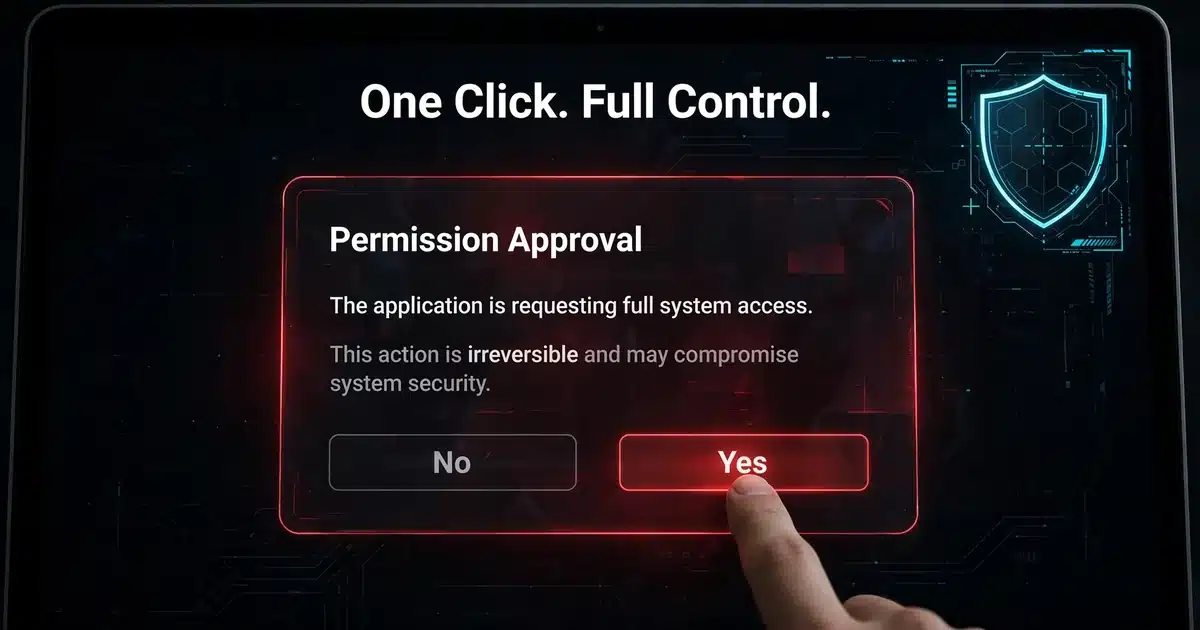
Table of Contents
What Admin Access Actually Hands Over
On a Windows computer, an administrator has full control over that machine. Microsoft’s own guidance recommends limiting how many users sit in the local Administrators group, and for good reason. An admin account can install and remove software, add drivers, create or delete user accounts, change system settings and file permissions, install background services, and modify security settings.
Now here’s where it gets dangerous. Software launched by an employee normally runs with that employee’s permissions. If malware lands on the computer, through a fake installer, a malicious attachment, a compromised website, it starts with standard permissions and hits a wall. But if the employee is an administrator, the malware just asks for approval, the employee clicks Yes thinking it’s a legitimate update, and now the malware has the keys to the entire machine.
Windows does try to help here. User Account Control pops up asking for approval before administrative changes. But an employee signed in as an administrator can approve that prompt themselves, in about half a second, without thinking. A standard user gets stopped and asked for an administrator’s credentials, which creates exactly the pause where bad decisions get caught.
And the wild part? Most of your employees will never notice the difference. Email, web browsing, Microsoft 365, online meetings, printing, files, folders, all of it works fine on a standard account. The only thing a standard account can’t do is make system-level changes, which is precisely the thing you don’t want most employees doing unsupervised.
Why This Is a Business Problem, Not an IT Preference
The Verizon 2025 Data Breach Investigations Report found that credential abuse was the leading initial attack vector in breaches, involved in 22% of them, and that 60% of breaches involved the human element in some way. An employee with admin rights who gets phished isn’t just a compromised inbox anymore. It’s a compromised computer, with a direct path to everything that computer can reach.
For my law firms, think about what lives on your attorneys’ laptops. Client confidences, privileged communications, litigation strategy. Your ethical obligations don’t distinguish between “the attacker was sophisticated” and “a paralegal approved a fake update with admin rights.” The data is exposed either way.
For my CPA practices, the FTC Safeguards Rule specifically calls for the principle of least privilege, giving people the minimum access their job requires. Running your entire staff as local administrators is the opposite of that principle, documented in a way an auditor can see.
For my construction firms, think about the laptops going to job sites, getting connected to random networks, getting handed around. A standard user account on a job site laptop is a contained problem. An admin account on that same laptop is a problem with a company truck.
And here’s the angle most owners miss: this isn’t just about preventing attacks. Computers without admin rights are more stable, have fewer weird software conflicts, and generate fewer support tickets. Your IT provider spends less time cleaning up messes that shouldn’t have been possible in the first place.

How to Remove Employee Admin Access: The Six-Step Fix
This is the part where owners get nervous. “If I take away admin rights, nothing will work and my team will revolt.” I’ve done this dozens of times. Done right, most employees notice nothing. Here’s the process.
Step 1: Find out who has admin rights right now.
Audit every computer. Check the local Administrators group on every Windows machine and the admin users on every Mac. Include the accounts nobody remembers: old employee accounts, vendor accounts created during some installation three years ago, the “TempAdmin” account from the original setup. You can’t fix what you haven’t inventoried, and I promise the list will be longer than you expect.
Step 2: Make sure IT has a separate way in first.
Before you remove anyone’s access, confirm your IT team or provider has a working, protected administrator account on every machine. Test it. This is non-negotiable. The fastest way to turn a security improvement into a crisis is to lock everyone out, including the people who fix things. Each computer should have its own unique admin credentials, too. One shared admin password across every laptop means one stolen password compromises every laptop.
Step 3: Move employees to standard accounts.
Once IT’s access is confirmed and tested, remove employees from the local Administrators group. Have them sign out and back in so the new permissions take effect. Start with the obvious cases, the people who only do email, documents, and web apps, and work outward. Test their critical applications as you go. Most business software runs perfectly on a standard account. The ones that don’t, usually older or specialized applications, get identified in testing, not discovered in a panic on Monday morning.
Step 4: Build a fast lane for legitimate installs.
This is where the whole thing succeeds or fails. If getting software installed becomes a three-day ordeal, employees will hate the change and someone will quietly hand out admin rights again. Set up one clear way to request installations: who to contact, what information to include, and a response time you actually meet. Better yet, use managed deployment so IT can push approved software and updates remotely without anyone running an installer at all. The goal is that employees get what they need faster than before, just through a safer path.
Step 5: Handle the real exceptions properly.
Some people genuinely need elevated access sometimes. A developer testing software, a power user supporting a specialized application. Give them a separate administrator account used only for those tasks, while their daily work stays on a standard account. Email and web browsing happen as a standard user, always. The admin account comes out for the specific job and goes away after. And business owners, this includes you. Owning the company doesn’t require administrator access on your laptop. Use a standard account like everyone else.
Step 6: Review access on a schedule.
Access drifts. People change roles, take on new responsibilities, leave the company. Someone gets temporary admin rights for a project and it never gets revoked. Put administrator access into your regular review cycle, alongside your other access reviews. Check it when roles change, when people leave, and at least once a year across the board. CISA’s ransomware guidance specifically advises businesses to control local administrator access and restrict who can install software. Make it a habit, not a one-time project.
The Bottom Line
Nobody ever got breached because their employees had too little access. But plenty of businesses have been breached because one employee had too much, clicked the wrong thing, and the malware inherited the keys to the kingdom.
When you remove employee admin access properly, it’s one of the highest-return security moves a small business can make. It mitigates the majority of critical Microsoft vulnerabilities, it stabilizes your computers, it satisfies the least-privilege requirements your auditors and regulators already expect, and most of your team will never notice it happened.
Look, at the end of the day, your employees don’t want the responsibility of being their own IT security department. They want their computers to work. Taking away admin rights isn’t taking something from them. It’s taking a burden off them.
If you’re not sure who has administrator access across your computers right now, that’s a conversation worth having. Book a 15-minute call. No pressure, just practical advice.
FAQ
Q: Will removing administrator access stop my employees from working?
A: For normal business work, no. Email, browsers, Microsoft 365, meetings, printing, and files all work fine on a standard account. The change only affects system-level actions like installing software or changing security settings. Test specialized and older applications before rolling it out everywhere, because those are the ones that occasionally need attention.
Q: Can a standard user install any software at all?
A: Sometimes. Programs that install only inside the user’s own profile may not need administrator approval. But software that touches protected system files, installs drivers, or adds background services will need administrator credentials. That’s by design, it’s the checkpoint that stops malicious installers.
Q: Does removing admin access stop malware completely?
A: No, and anyone who tells you otherwise is selling something. It dramatically reduces what most malware can do once it lands, which is why it mitigates so many critical vulnerabilities. But it’s one layer. You still need supported software, security updates, endpoint protection, email security, multifactor authentication, and tested backups.
Q: Should I, as the business owner, keep administrator access?
A: Use a standard account for your daily work, same as everyone else. If you need administrator access for a specific task, use a separate admin account and keep it protected. Owner accounts are high-value targets precisely because attackers assume they have the most access. Don’t prove them right.
Q: Is local administrator access the same as Microsoft 365 administrator access?
A: No, and this confusion causes real problems. Local admin controls one computer. Microsoft 365 admin roles can control email, files, users, and security settings across your entire cloud environment. Both should be limited and reviewed, but they’re separate things, and someone can have one without the other.
Sources
- BeyondTrust 2025 Microsoft Vulnerabilities Report: removing local admin rights has historically mitigated 75% of Microsoft’s critical vulnerabilities, https://www.beyondtrust.com/solutions/least-privilege-management/
- Verizon 2025 Data Breach Investigations Report: credential abuse (22%) the leading initial attack vector; 60% of breaches involved the human element, https://www.verizon.com/about/news/2025-data-breach-investigations-report?msockid=06ade9c3eab56bf41633fcefeb2a6a19
- CISA StopRansomware Guide: control local administrator access and restrict software installation, https://www.cisa.gov/stopransomware/ransomware-guide
- Microsoft Learn: Local accounts (recommendation to limit the Administrators group), https://learn.microsoft.com/en-us/windows/security/identity-protection/access-control/local-accounts
- Microsoft Learn: How User Account Control works, https://learn.microsoft.com/en-us/windows/security/application-security/application-control/user-account-control/how-it-works
- Apple Support: Set up your Mac to be secure (limit administrative users), https://support.apple.com/en-gb/guide/mac-help/flvlt003/26/mac/26